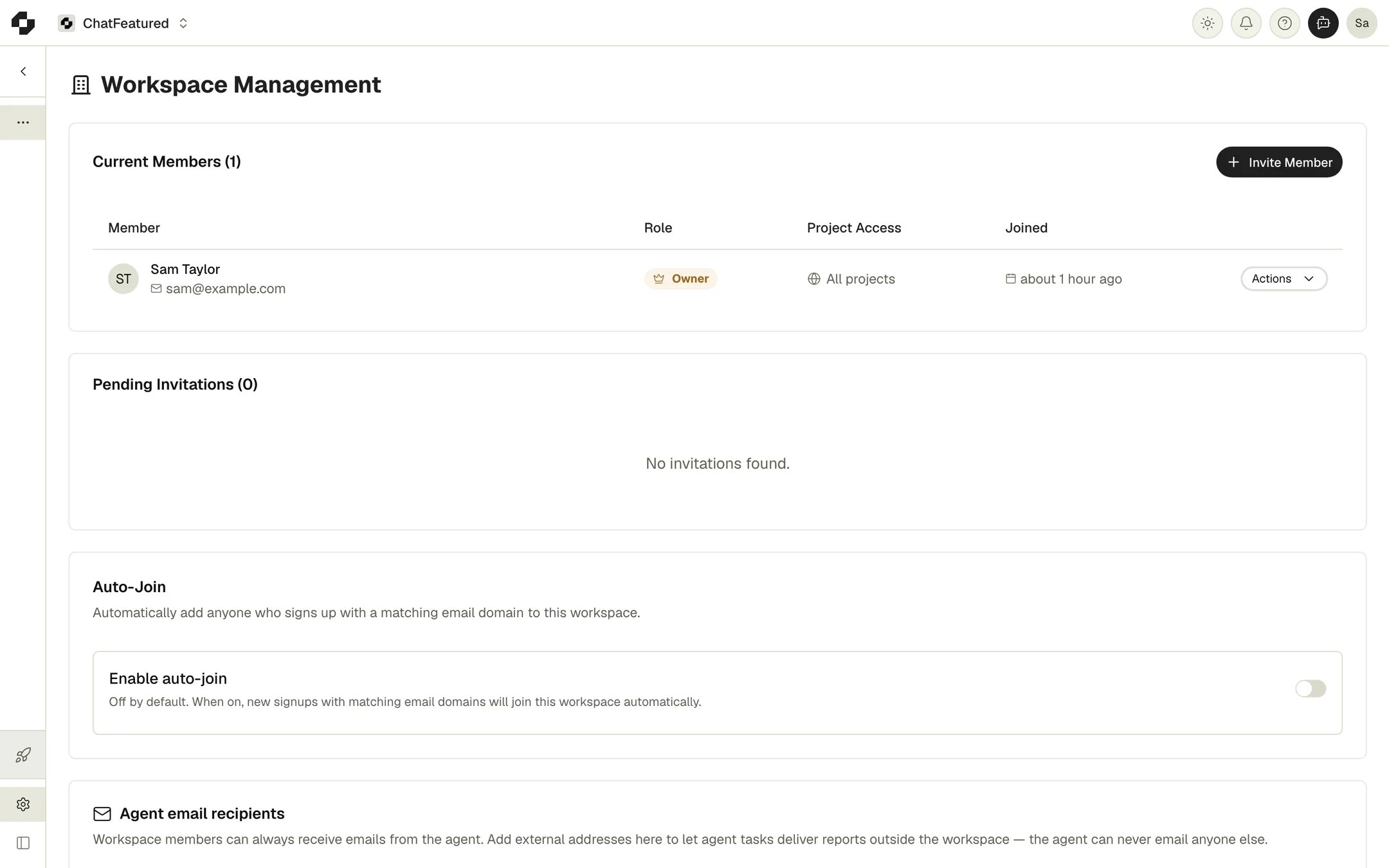
ChatFeatured is built for teams. Invite colleagues, assign roles, and collaborate on improving your brand’s AI visibility.

Organization Structure

ChatFeatured uses a hierarchical structure:
Organization
├── Members (with roles)
├── Brand 1
│   ├── Prompts
│   ├── Competitors
│   └── Analytics
├── Brand 2
│   └── ...
└── Brand 3
    └── ...
  • Organization: Your company or agency account
  • Members: People with access to the organization
  • Brands: Individual brands/products being tracked

Member Roles

Owner

Full control over the organization:
  • All Admin permissions
  • Billing and subscription management
  • Organization deletion
  • Transfer ownership
Each organization has exactly one Owner.

Admin

Manage the organization and its brands:
  • Invite and remove members
  • Create and delete brands
  • Manage integrations
  • Access all features and data
  • Cannot manage billing or delete organization

Member

Work within assigned brands:
  • View and manage prompts
  • Access analytics and reports
  • Use AI agents
  • Manage competitors
  • Cannot invite members or manage organization settings

Inviting Team Members

Sending Invitations

  1. Go to Settings > Team
  2. Click Invite Member
  3. Enter the person’s email address
  4. Select their role (Admin or Member)
  5. Click Send Invitation
The invitee receives an email with a link to join your organization.

Invitation Status

View pending invitations:
StatusMeaning
PendingInvitation sent, not yet accepted
AcceptedUser joined the organization
ExpiredInvitation not accepted within 7 days

Resending Invitations

If an invitation expires or wasn’t received:
  1. Find the pending invitation
  2. Click Resend
  3. A new invitation email is sent

Revoking Invitations

To cancel a pending invitation:
  1. Find the invitation in the pending list
  2. Click Revoke
  3. The invitation link becomes invalid

Managing Existing Members

Viewing Team Members

Go to Settings > Team to see:
  • All organization members
  • Their roles
  • When they joined
  • Last activity

Changing Roles

To change a member’s role:
  1. Find the member in the team list
  2. Click the role dropdown
  3. Select the new role
  4. Confirm the change
Demoting an Admin to Member restricts their access immediately. Ensure someone else has Admin access before demoting the last Admin.

Removing Members

To remove someone from the organization:
  1. Find the member in the team list
  2. Click Remove
  3. Confirm the removal
Removed members:
  • Lose access immediately
  • Cannot see organization data
  • Can be re-invited later if needed

Brand Access

Organization-Wide Access

By default, all members can access all brands in the organization. This simplifies management for most teams.

Future: Brand-Level Permissions

We’re working on granular brand-level permissions that will allow:
  • Restricting members to specific brands
  • Different roles per brand
  • Client-specific access for agencies
Contact us if you need this functionality today.

Collaboration Features

Shared Data

All team members see the same:
  • Prompts and results
  • Analytics and trends
  • Competitor data
  • AI agent conversations (shared context)

Activity Tracking

See who’s doing what:
  • Prompt creation and modification
  • Integration changes
  • Significant actions logged

Best Practices

Role Assignment

  • Owners: Founders, leadership, primary account holder
  • Admins: Marketing managers, team leads, agency account managers
  • Members: Specialists, analysts, contributors

Security Practices

  • Remove members who leave the company promptly
  • Review team list periodically
  • Use appropriate roles (not everyone needs Admin)
  • Keep owner credentials secure

Organization Settings

Organization Name

To change your organization name:
  1. Go to Settings > Organization
  2. Edit the Name field
  3. Save changes
This is a display name and doesn’t affect your account URL.

Organization Deletion

To delete an organization (Owner only):
  1. Go to Settings > Organization
  2. Click Delete Organization
  3. Enter your password to confirm
  4. Confirm final deletion
Organization deletion is permanent. All data, including prompts, analytics, and brands, is immediately and irreversibly deleted.

Troubleshooting

”Invitation not received”

  1. Check spam/junk folders
  2. Verify the email address was correct
  3. Resend the invitation
  4. Try a different email address if issues persist

”Cannot access brand”

  1. Verify you’re in the correct organization
  2. Check with an Admin about your access
  3. Try refreshing or logging out/in

”Cannot invite members”

  1. Only Admins and Owners can invite
  2. Check if you’ve hit any seat limits
  3. Contact billing if you need more seats