

Engines and prompt slots
Every tracked prompt runs on every engine your plan includes. You don’t pick engines per prompt.
Claude and Grok are add-ons on Growth and Enterprise. See Billing.
A prompt uses one slot per country, so a prompt tracked in the US and Canada uses two. Paused prompts and suggestions use none. Slots are shared across every project in the workspace. The page header shows the count, for example “42 of 50 slots used”.
When prompts run
Tracked prompts run once a day, starting at 00:15 UTC. A prompt also runs straight away when you track it, resume it from its row, or add a country to it, and the answers appear as each engine replies.Add prompts
Click Add prompts at the top of All prompts and pick one of three options.Write your own
- Choose Add prompts > Write your own.
- Type the question in Prompt, the way a customer would ask an AI assistant.
- Optionally pick Keywords. Leave it empty and ChatFeatured researches keywords for you.
- Pick one or more Countries. The dialog shows how many slots the prompt will use.
- Optionally pick Topics, or use Create topic.
- Click Track prompt.
Import CSV
Choose Add prompts > Import CSV to add many prompts at once. Download template gives you a file in the right shape:- prompt is required.
- countries takes two-letter country codes separated by commas. A row with none uses your project’s default country.
- keywords is optional and comma separated.
- Every other column is read as a topic. Topics that don’t exist yet are created.
Generate suggestions
Choose Add prompts > Generate suggestions to have ChatFeatured write prompts for you. See Suggestions.The prompts list
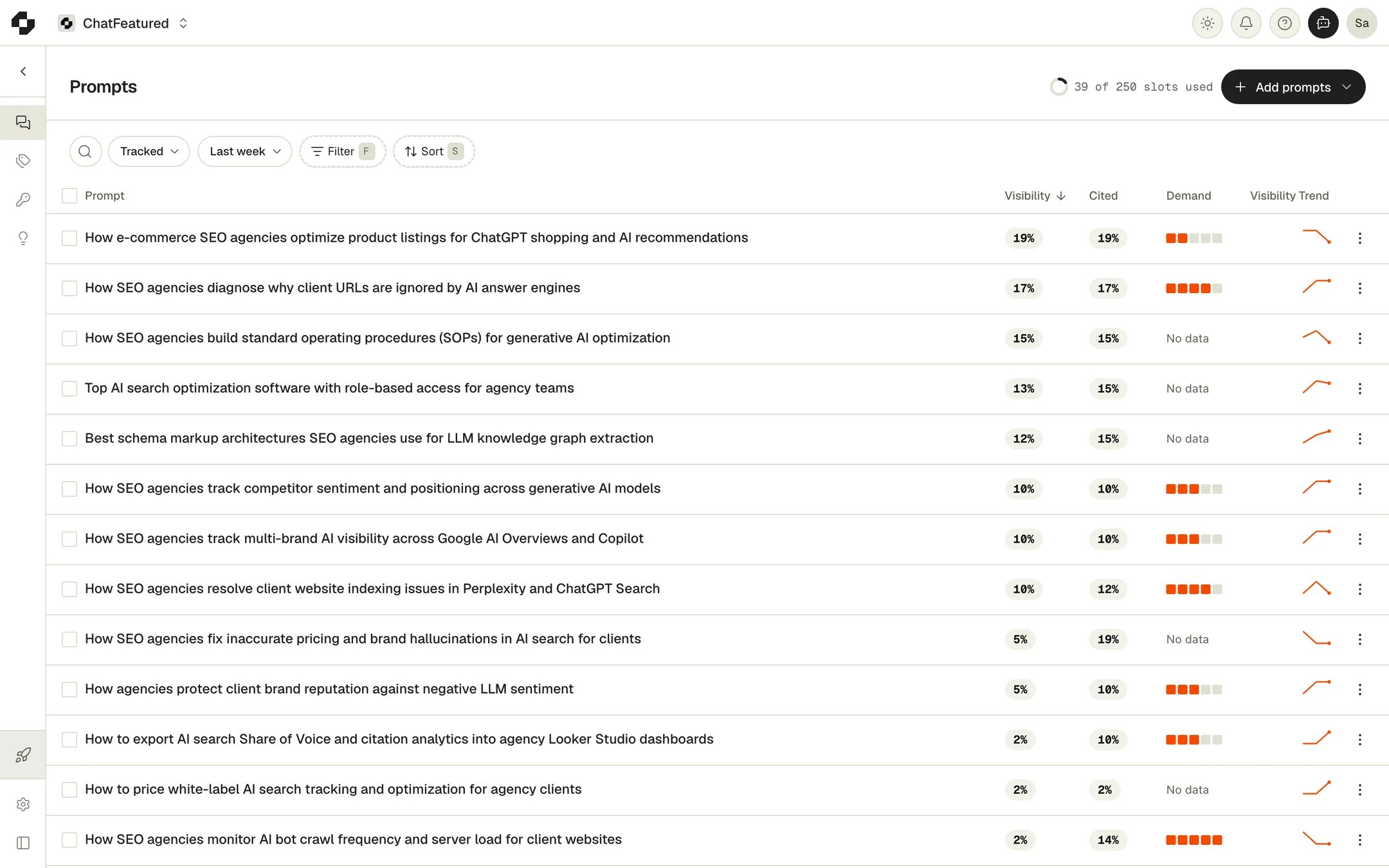
- Visibility: the share of the prompt’s answers that name your brand, out of answers that name any brand. The same Visibility as in Data Analytics.
- Cited: the share of answers that cite a page on your own website, out of answers that mention any brand. See Citation rate.
- Demand: how much people search for the prompt’s busiest keyword, from Very low to Very high.
- Visibility Trend: a small chart across the period.
The prompt panel
Click a prompt to open it beside the list. The panel shows its Visibility and trend, its properties (you can edit countries, topics and keywords here), the numbers split By model and By country, Competitors on this prompt, Cited sources, Recent responses with the full answer text, and Linked articles.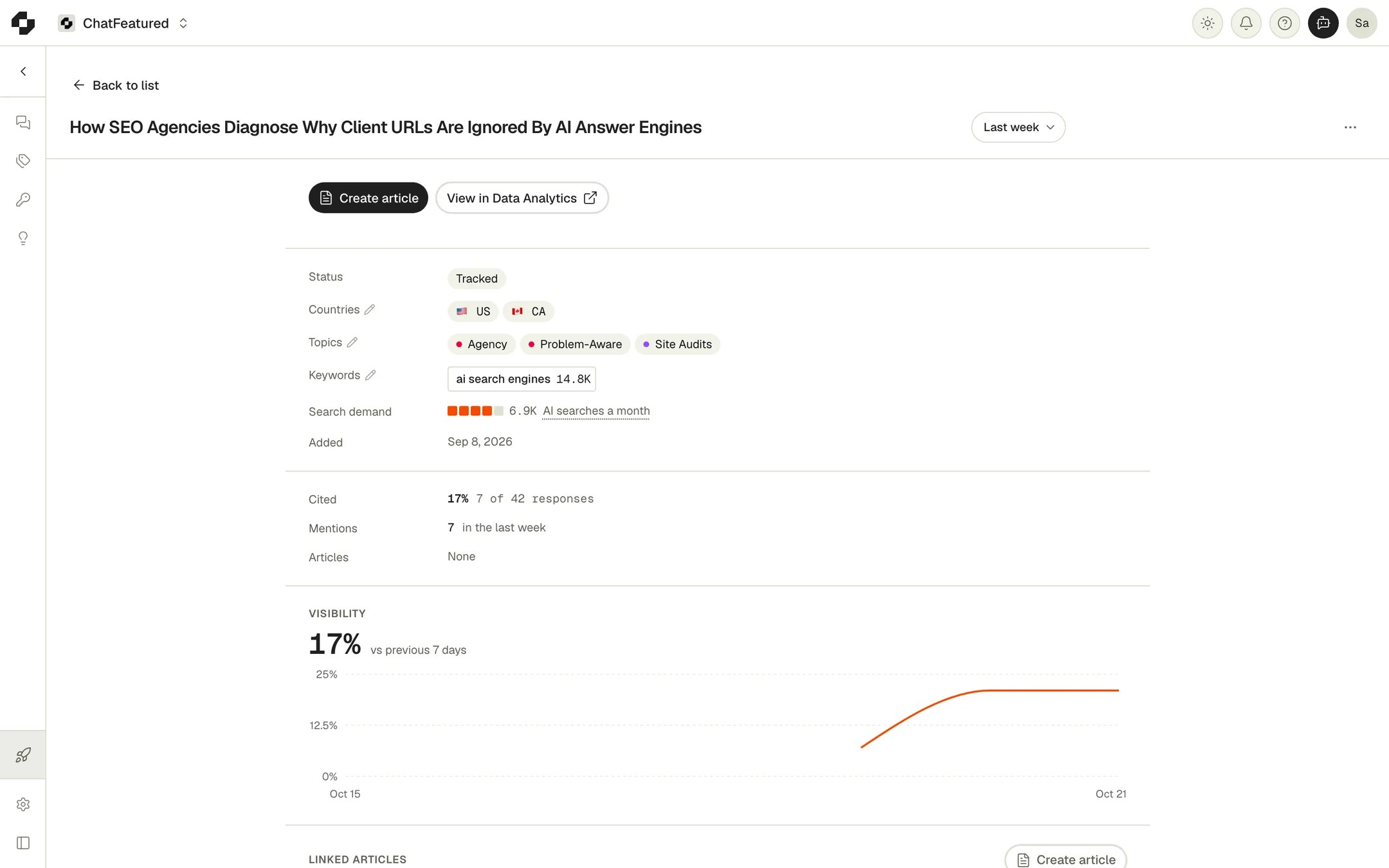
Edit, pause and delete
The … menu on a row has Open, View in Data Analytics, Edit, Create article, Suggest with agent, Pause or Resume, and Delete. Edit changes a prompt’s countries and topics.You can’t change a prompt’s wording. To ask it differently, write a new prompt. It starts with no history, so keep the old one running until the new one has a few days of answers.
Suggestions
Prompt Tracker > Suggestions lists prompts ChatFeatured thinks are worth tracking, each with its search demand and a suggested topic. They’re written from your Brand Book and customer personas, so you need a website, a Brand Book and at least one persona.- Track starts tracking a suggestion. It then uses slots like any other prompt.
- Dismiss removes it. Dismissed suggestions aren’t offered again.
- Generate prompts adds up to 10 more. If you have more than one persona, you can aim the batch at one of them.
Permissions
Owners, Admins and Members can add, edit, pause and delete prompts. Viewers can see prompts and their numbers but can’t change them.Troubleshooting
"Not enough slots for every row" when importing
"Not enough slots for every row" when importing
The file needs more slots than you have left. The first rows are tracked and the rest are added as paused. Pause or delete prompts you no longer need, remove countries, or click Increase limit.
"None of the selected countries are supported by your plan's models"
"None of the selected countries are supported by your plan's models"
No engine on your plan runs in the countries you picked. Add another country, such as your main market.
A new prompt shows "Waiting on first run"
A new prompt shows "Waiting on first run"
The prompt hasn’t been answered yet. Its first answers arrive as each engine replies, or with the next daily run.