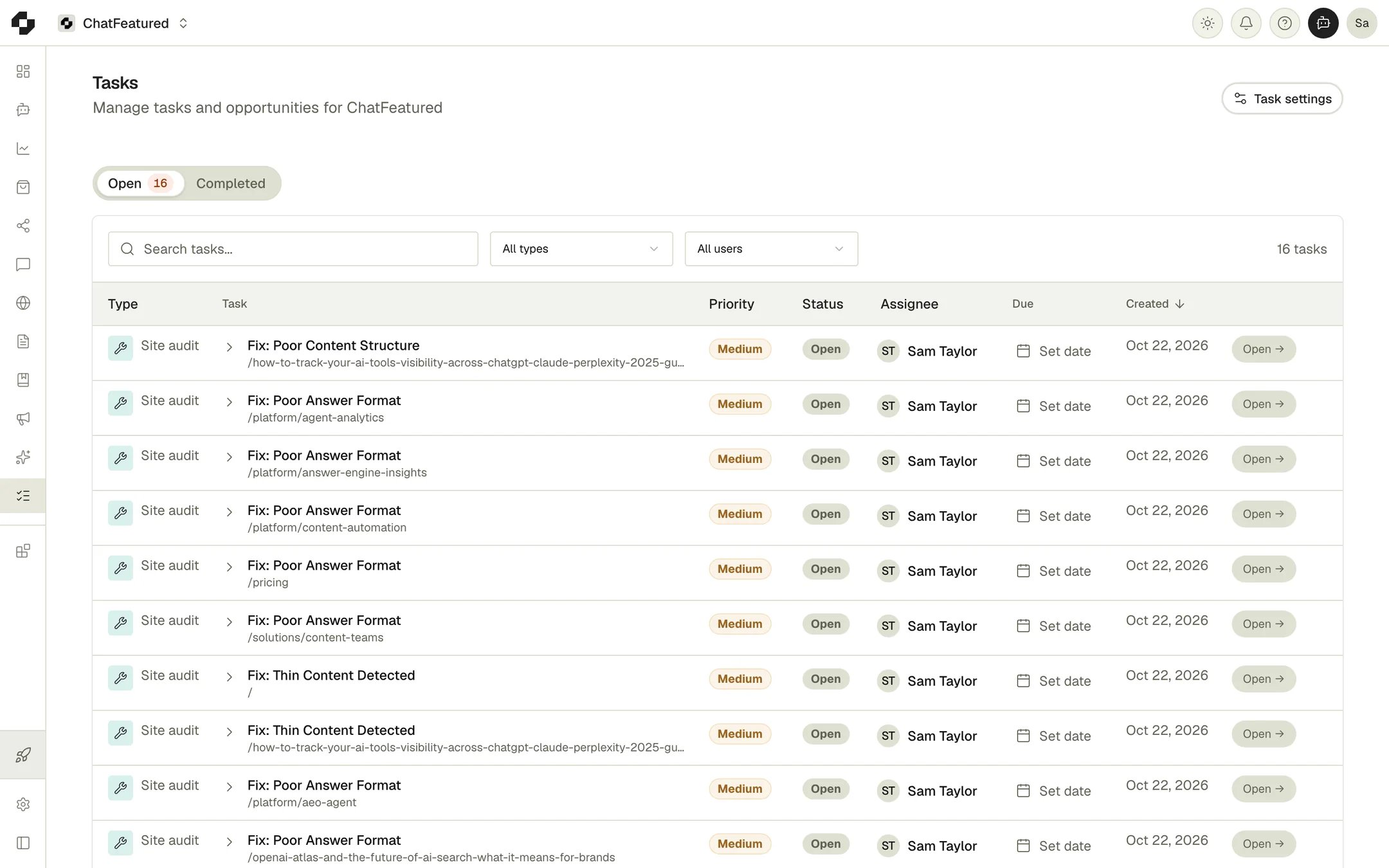
ChatFeatured’s Tasks system bridges the gap between AI visibility insights and practical execution. Instead of wading through raw analytics, the platform continuously analyzes your citation share, competitor mentions, crawler logs, and technical health to generate prioritized, actionable tasks.

Two-Stage Pipeline

Review ephemeral opportunities before committing them to your official task board.

Conversational Management

Instruct your Unified AI Agent to create, assign, complete, or dismiss tasks in plain English.

5 AEO Vectors

Structured playbooks for Content, Earned Media (PR), UGC, Sentiment, and Site Audits.

Content Lifecycle Integration

Convert content gap tasks directly into research-backed, published articles with one click.

The Two-Stage Opportunity Pipeline

ChatFeatured separates insight discovery from task execution to prevent workspace clutter:
1

1. Autonomous Discovery & Surfacing

As ChatFeatured tracks your prompts and crawls your site, it identifies high-impact opportunities. The AI Agent surfaces these cards directly into the Opportunities Panel during chat sessions or scheduled automations.Ephemeral Tasks
Surfacing is not adding: Surfaced opportunities are ephemeral review cards. They do not clutter your task board or consume pipeline capacity until you approve them.
2

2. Commitment to Task Board

Once you or your team review an opportunity, commit it to the Tasks Page by clicking Add to Tasks or telling the agent: “Add that opportunity to my task list.”
3

3. Execution & Automated Verification

Execute the task using ChatFeatured’s integrated toolset (e.g., drafting an article, outreach to cited journalists, implementing schema). Once executed, ChatFeatured monitors subsequent AI prompt runs to measure visibility lift.

Opportunity & Task Categories

Every task in ChatFeatured belongs to one of five strategic Answer Engine Optimization (AEO) categories:
Objective: Resolve technical and structural barriers preventing AI crawlers from indexing and understanding your content.
  • Data Source: Technical Site Audit crawler + Edge Crawler Log Analytics (Cloudflare/Vercel).
  • Example Task: “Add missing JSON-LD Organization schema and configure llms.txt index file.”
  • Integrated Action: Direct code snippet generation and automated re-audit verification. Issue Example

Task Settings & Routing

To streamline your team’s workflow, you can configure automated assignment rules and email alert routing directly in Task Settings.

Default Assignee

Choose which team member is automatically assigned to newly created tasks generated by the AI agent, automations, or site audits.

Email Notifications

Select which team members receive an immediate email notification whenever a new task is created in the project.
Project-Scoped Settings: Task assignment and email alert preferences apply to this project only. If you manage multiple brands or client workspaces within ChatFeatured, each project maintains its own independent routing rules.

How to Configure Task Settings

  1. Navigate to Tasks in the primary navigation.
  2. Click the Task Settings (⚙️) icon in the top right corner of the Tasks board.
  3. Under Default Assignee, select a team member from your project members list.
  4. Under Email Alerts, toggle on the team members who should receive notifications when new tasks are added.
  5. Click Save Settings.

Managing Tasks via the AI Agent

You can manage your entire task backlog without clicking through menus by switching to tasks mode or prompting the Unified Agent directly.

Add Opportunities to Tasks

“I like the earned media recommendation for Forbes. Add it to my tasks with high priority.”

Query Active Tasks

“What high-priority content tasks are currently in progress for this sprint?”

Update & Complete Tasks

“Mark the task ‘Publish llms.txt guide’ as completed and check if our citations moved.”

Dismiss Irrelevant Items

“Dismiss all low-priority UGC tasks related to Quora.”
The agent retains memory of your team’s task actions. It will never re-surface an opportunity you previously dismissed or completed unless new competitive data warrants a re-evaluation.

Tasks vs. Automations (agent-tasks)

It is important to understand the distinction between one-off Tasks and recurring Automations:

Task Lifecycle & Statuses

  • Surfaced: Ephemeral card in the Opportunities Panel. Requires user confirmation to persist.
  • To Do (Pending): Formally added to the workspace backlog. Prioritized as High, Medium, or Low.
  • In Progress: Currently being drafted, executed, or developed.
  • Completed: Implementation finished. The platform tracks post-completion visibility and citation impact.
  • Dismissed: Archived out of view. Preserved in history to prevent the agent from re-suggesting it.

Frequently Asked Questions

No. Surfacing displays an insight in the Opportunities panel for review. It only becomes a formal task with assignees, due dates, and priorities when explicitly approved.
Yes, for supported workflows. For example, approving a Content Opportunity can automatically trigger background research, drafting, and queueing in the Content pipeline. Technical audit fixes can generate ready-to-deploy code snippets.
Open Tasks \rightarrow Settings (⚙️) and update the Email Alerts recipient list. Remember that this configuration is project-specific and will not affect other workspace projects.
When a recurring Automation (configured under Automations / agent-tasks) discovers actionable items, it surfaces them in your daily/weekly digest email and logs them to the Opportunities panel for review.
Completed tasks remain in your task history for attribution. ChatFeatured’s analytics engine correlates completion dates with historical visibility and citation trendlines so you can measure ROI.