

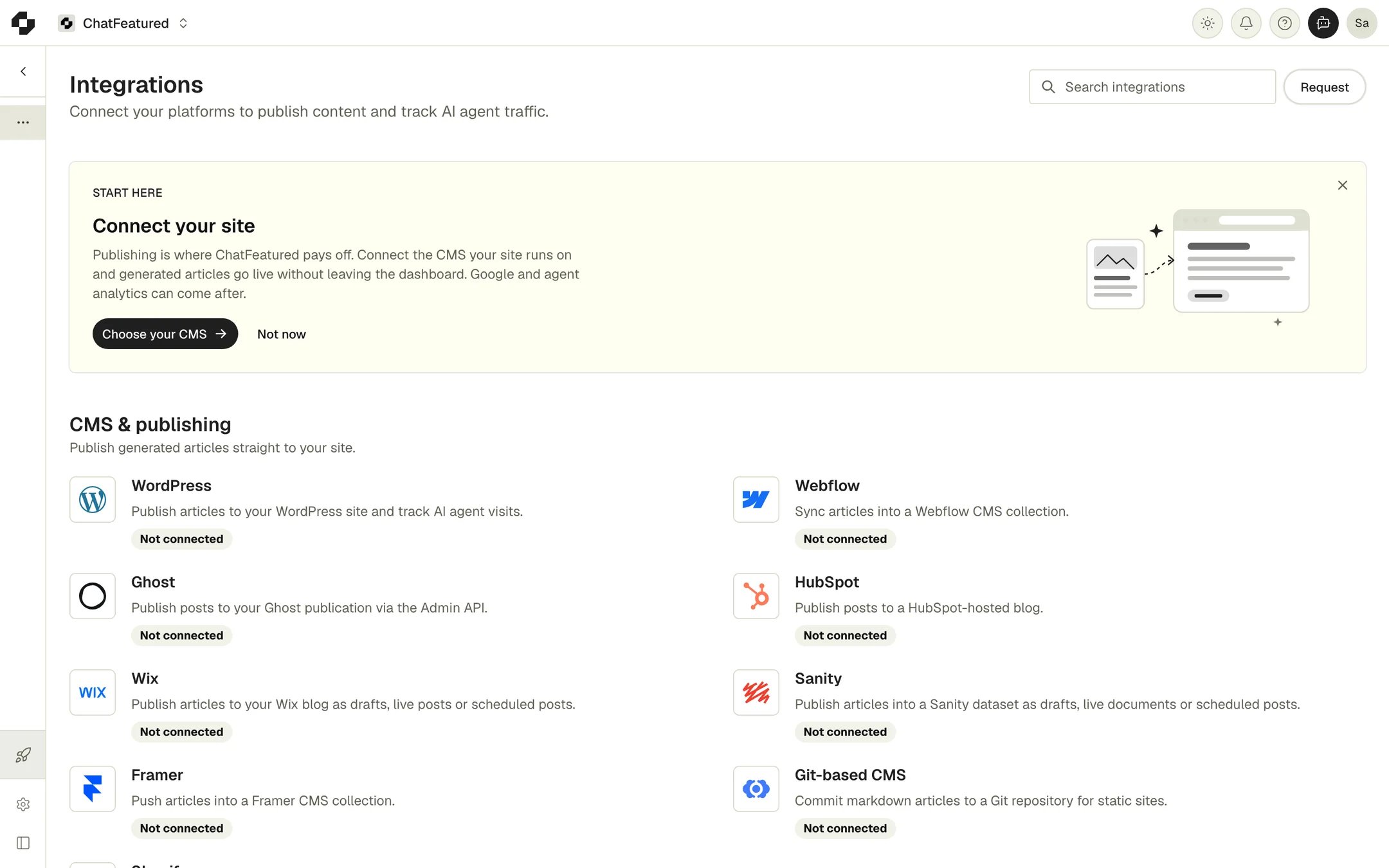
CMS and publishing
Publish articles to your site. A project can have more than one publishing integration, and you pick the destination when you publish.WordPress
Publish articles to your WordPress site with the ChatFeatured plugin. The plugin also tracks AI agent visits.
Webflow
Sync articles into a Webflow CMS collection.
Ghost
Publish posts to your Ghost publication through the Admin API.
HubSpot
Publish posts to a HubSpot-hosted blog.
Wix
Publish articles to your Wix blog as drafts, live posts or scheduled posts.

Sanity
Publish articles into a Sanity dataset as drafts, live documents or scheduled posts.
Framer
Sync articles into a Framer CMS collection with the ChatFeatured plugin.
Git-based CMS
Commit markdown articles to a Git repository for static sites. Works with CloudCannon, Hugo, Jekyll, Astro, and more.
Shopify
Publish articles to your Shopify store’s blog.
Blog CMS
A blog hosted by ChatFeatured on your own subdomain. Set it up from Content Hub → Blog CMS, not from Integrations.
Google Search Console
See Google Search clicks and queries, submit sitemaps, and check whether a URL is indexed.
Website analytics
Measure site traffic, conversions and AI referrals. If more than one provider is connected, you choose which one to view in Website Analytics.Google Analytics
Bring GA4 traffic and referral data into your dashboard.
Plausible Analytics
Connect traffic, goals and AI referral reports.
Fathom Analytics
Connect traffic, event conversions and AI referral reports.
Agent analytics
Log AI agent and crawler visits from your hosting or CDN. Most AI crawlers don’t run JavaScript, so these server-side sources see visits that website analytics miss. See Agent analytics for what you get.Cloudflare
Capture AI agent requests at the edge with a Worker. Needs Cloudflare’s Workers Paid plan.
Vercel
Forward request logs from Vercel with a log drain.
AWS Data Firehose
Stream CloudFront logs through Amazon Data Firehose.
Custom Log Integration
Send server logs from any stack to the ChatFeatured ingestion endpoint.
API and MCP
Build your own workflows or connect an AI assistant.REST API
List and fetch articles, mark them published, track external content, and receive webhooks. One key per project.
AI Assistants (MCP)
Let Claude, ChatGPT or Cursor work with your project data directly, across every project you can access.